Rivio Partner · Help
How to set up smart door lock
Let pass holders unlock your studio from the Rivio member app — no front-desk wait. Follow this guide end to end so you rarely need to contact support.
Updated 2026-10-22 · Also in Partner app: More → Help & Support → Door Lock
Recommendation
For most gyms and studios: use a lock that works with the TTLock phone app, plus a TTLock Wi‑Fi gateway (for example a G2) on your gym Wi‑Fi near the door. That is the simplest path in Rivio Partner.
Alternative that works well: an electric strike / magnetic lock wired to a Wi‑Fi relay with a cloud unlock URL (e.g. Shelly), entered as an HTTPS unlock link in Rivio.
Already have ZKTeco or eSSL on the wall? Use ZKBio / eBioserver cloud unlock, or point the device at Rivio ADMS (see Path C below). The unit must control a door relay — fingerprint attendance-only machines cannot remote-unlock.
What it looks like
Path A — TTLock (recommended)
1. Hardware & gateway
- Install a TTLock-compatible lock (or any lock that already appears in the TTLock app).
- Place a TTLock Wi‑Fi gateway near the door, powered 24/7, on gym Wi‑Fi. Pair it in the TTLock app.
- In TTLock, confirm the lock shows gateway connected and that remote unlock works from the TTLock app (outside Bluetooth range).
Without a gateway, the lock is Bluetooth-only. Rivio cannot open it remotely.
2. Connect in Rivio Partner
- Open More → Door Lock Setup and choose the venue.
- Select Configured with the TTLock app.
- Pick your brand (India brands are listed A–Z first).
- Enter your TTLock username and password (same as the TTLock phone app) → Find my locks → select the door.
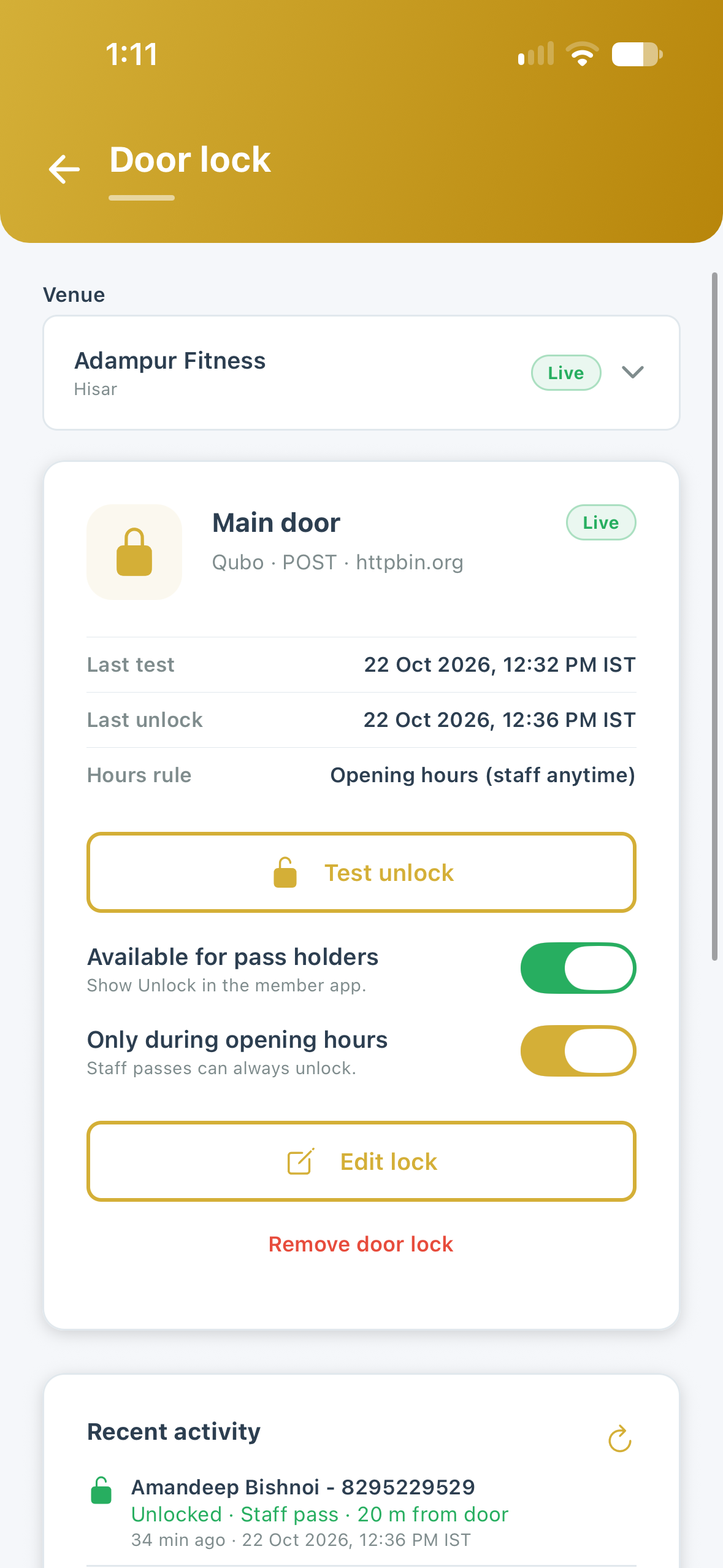
- Save → stand at the door → Test unlock.
- After a successful test, turn on Available for pass holders.
TTLock credentials — who owns what
| Credential | Who | Where |
|---|---|---|
| TTLock client ID & secret | Rivio (one pair for the whole platform) | Rivio servers — partners never enter these |
| TTLock app username & password | Each partner (their own account) | Typed in Door Lock Setup; password not stored |
Like a Google Maps API key: Rivio has one key; each studio signs in with its own TTLock account. Tokens are encrypted and renewed automatically.
Path B — HTTPS unlock link
Use this when your installer or device cloud gives you a remote-unlock URL. Brand names (Yale, Godrej, Relay…) are labels only — the URL is what connects.
| Setup | What you need | Best for |
|---|---|---|
| Wi‑Fi relay | Strike/maglock + Shelly-style cloud API (~₹2–5k + electrician) | Most gyms |
| Access controller cloud | Maker remote-unlock URL / API | Existing biometric doors |
| Bridge | Home Assistant / Tuya / SmartThings webhook | Tech-savvy owners |
| Switch to TTLock | TTLock lock + gateway (~₹8–15k) | Buying new hardware |
- Door Lock Setup → Unlock link (HTTPS).
- Unlock URL must be
https://and reachable from the internet (local 192.168… addresses are blocked for security). - Method POST / GET / PUT per docs; optional header, body, signing secret.
- Save → Test unlock → Available for pass holders.
Rivio treats HTTP 2xx within about 6 seconds as unlocked. For Shelly, set auto-off (~3s) in the Shelly app so the door locks again by itself.
Path C — ZKTeco / eSSL (common in Indian gyms)
Many clubs already have ZKTeco or eSSL fingerprint units. Rivio supports partner cloud unlock (ZKBio / eBioserverNew) and Rivio ADMS (device points its cloud URL at Rivio). The device must drive a door relay — attendance-only readers without unlock cannot open from the app.
C1. ZKBio / eBioserver cloud
- Door Lock Setup → brand ZKTeco or eSSL.
- Choose ZKTeco cloud (ZKBio) or eSSL cloud (eBioserver).
- Enter server URL, API token or username/password, and door ID / device serial.
- Save → Test unlock → Available for pass holders.
C2. Point device to Rivio (ADMS)
- Choose Point device to Rivio (ADMS).
- Copy the Rivio ADMS URL (shown in the app, typically
https://apis.rivioapp.com/api/iclock) into the device Cloud / ADMS setting. - Enter the device serial (SN) → Save.
- Wait until the manage screen shows Online → Test unlock.
Godrej, Yale, Qubo, Lavna…
Many consumer brand apps do not give owners an unlock URL. Rivio cannot invent one.
- Door already opens in the TTLock app → use Path A with that brand.
- Electrician fitted a Wi‑Fi relay → Path B with their https URL.
- Only the brand’s own app, no TTLock, no relay → Rivio cannot unlock yet.
What members experience
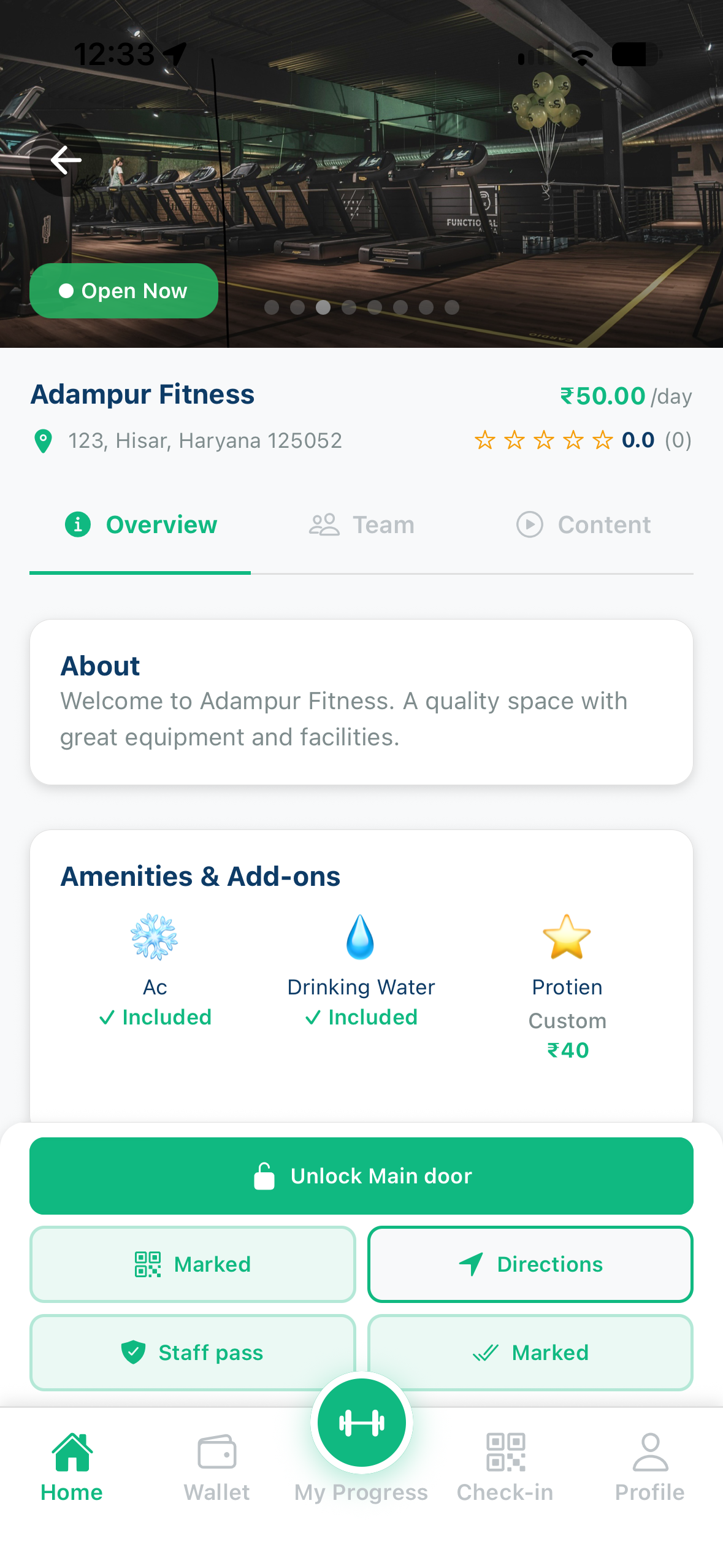
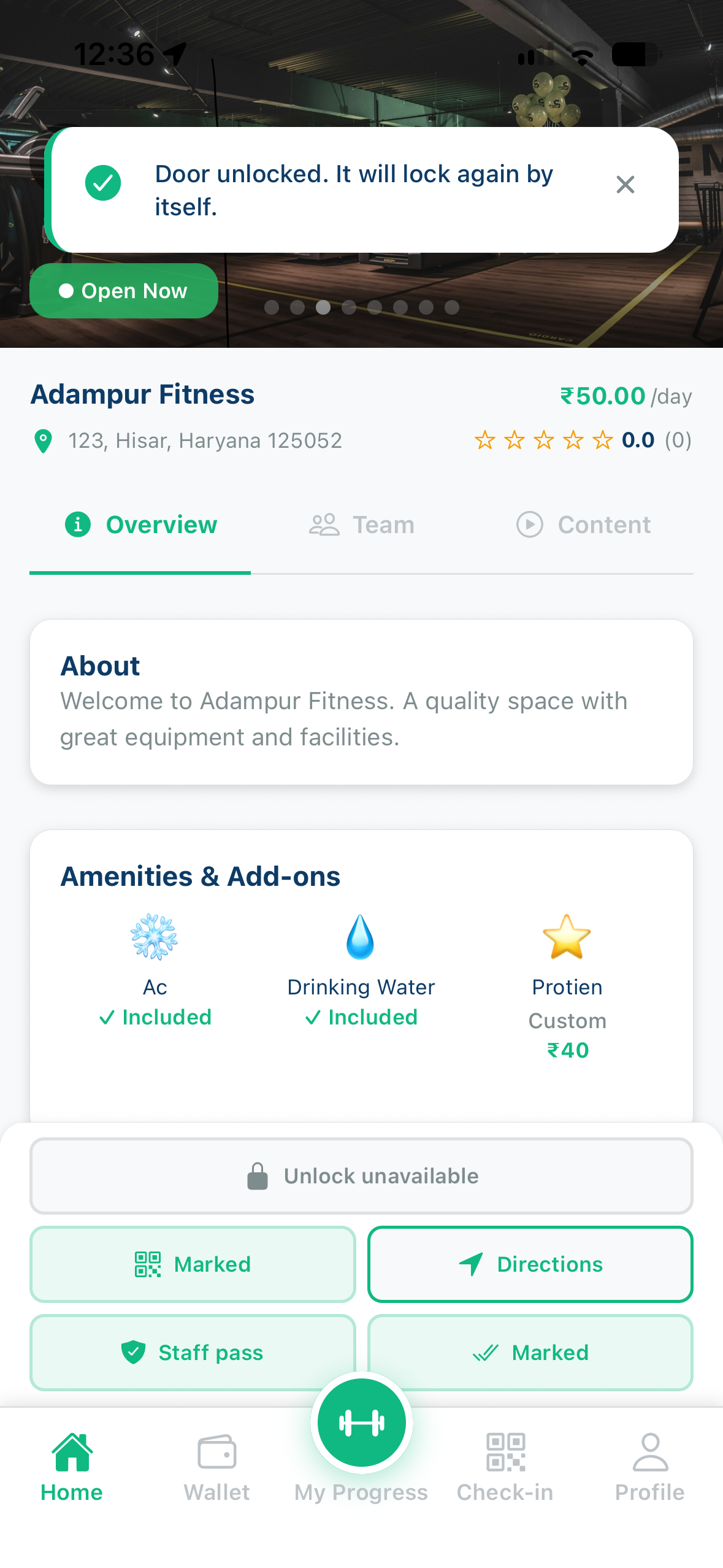
- On your studio page they see Unlock when the lock is live and they have an active pass, staff pass, or paid day visit.
- They must be near the door (~50 m). First unlock of the day can mark attendance for pass holders.
- No extra member setup — buy a pass and unlock when they arrive.
Recent activity
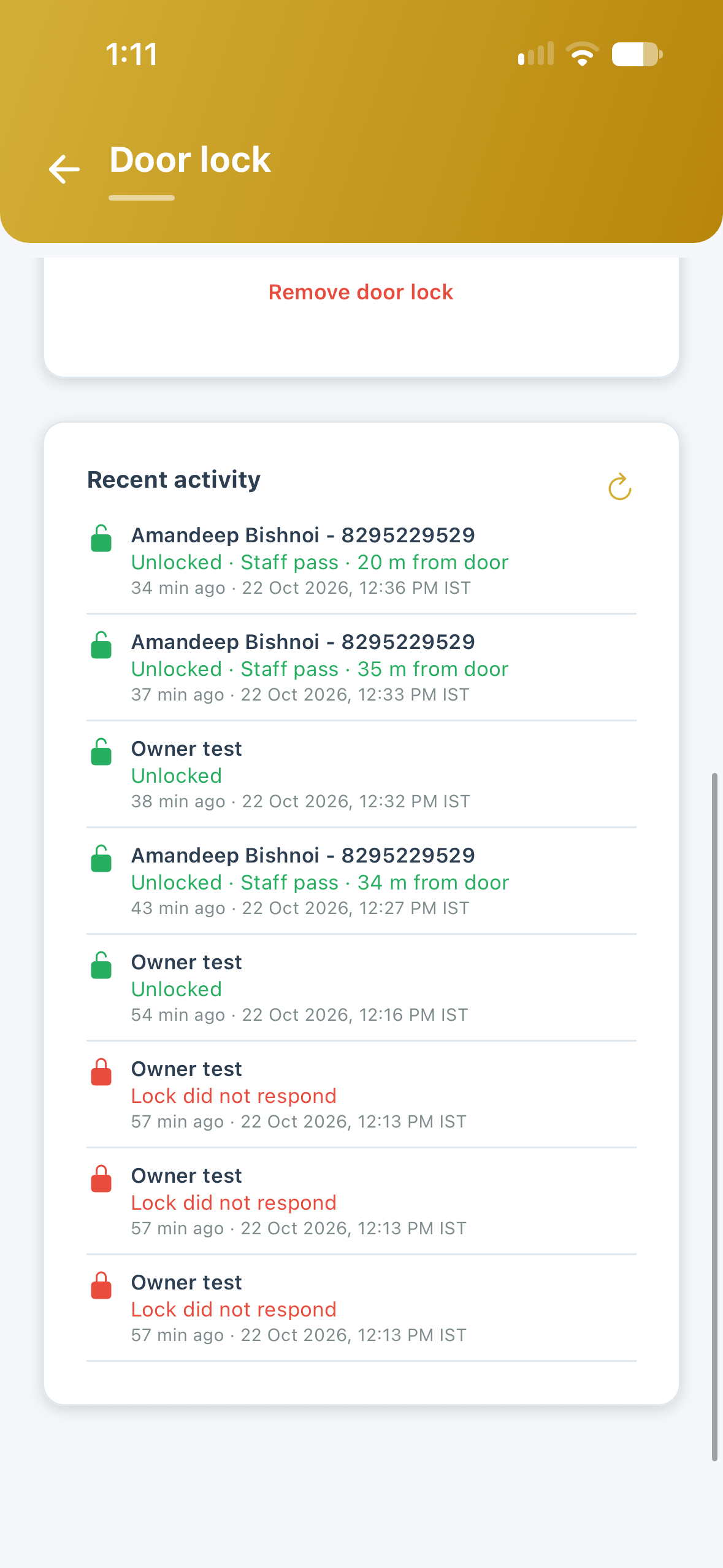
Every test and member unlock is stored in Rivio’s backend (door access logs) — not on the lock vendor’s URL. In Door Lock Setup you see name, full mobile, pass type, result, distance, and IST time. Refresh or Load more for older rows.
Go-live checklist
- Gateway online / unlock URL returns 2xx in Test unlock
- Available for pass holders is ON
- Venue location pin is accurate (unlock uses GPS near the door)
- Test with a staff pass or your own member login
- Confirm Recent activity shows the unlock
More FAQs in the Partner app under Door Lock, or Partner Help & Support. Email partners@rivioapp.com only if this guide does not cover your case.